Complete Guide: How to Activate Cisco IOU License in GNS3
Step-by-Step Tutorial for Network Simulation Setup and License Activation
🔧 Professional Setup: Learn from Certified Network Experts with Real-World Experience
If you’re preparing for CCNA/CCNP certification or working on network simulation projects, GNS3 with Cisco IOU provides the most realistic virtual networking environment available. However, to legally use Cisco IOU images, you need to properly activate your license. This comprehensive guide will walk you through the complete IOU license activation process step by step.
Expert Insight: “As a network instructor, I’ve helped hundreds of students activate their GNS3 IOU licenses. The key is following each step carefully and understanding the underlying process. This foundation is crucial for successful network simulation.” – Certified Network Expert
Prerequisites – Before You Begin
📋 Essential Requirements for IOU License Activation
Before starting the activation process, ensure you have the following components ready:
- GNS3 Installed – All-in-one version or GNS3 VM (recommended for better performance)
- GNS3 VM IP Address – Available in GNS3 under Edit > Preferences > GNS3 VM
- SSH Client – PuTTY, Terminal, or any SSH client for GNS3 VM connection
- Login Credentials – Default is “gns3” for both username and password
- Internet Connection – Required to download the Cisco IOU license generator script
- Python 3 – Pre-installed on GNS3 VM for running the license generator
Step-by-Step: Activate Cisco IOU License in GNS3
🔧 Step 1: Establish SSH Connection
Launch your SSH client and connect to your GNS3 VM using its IP address with port 22.
🛡️ Step 2: Authentication
Login with GNS3 VM credentials (default: gns3/gns3) to access the command line interface.
☁️ Step 3: Download Generator
Use wget command to download the official Cisco IOU license generator script.
🌐 Step 4: Generate License
Run the Python script to create your unique IOU license file (iourc.txt).
Detailed Activation Steps
Step 1: Connect to GNS3 VM via SSH
Open PuTTY or your preferred SSH client and establish connection to your GNS3 VM:
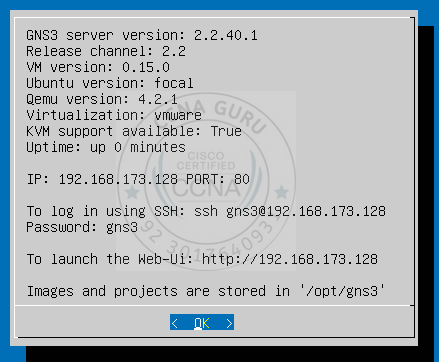
Step 2: Login to GNS3 VM
Authenticate with your GNS3 VM credentials:
Password: gns3
Login successful! Welcome to GNS3 VM.
Step 3: Download Cisco IOU License Generator
Execute the wget command to download the license generator script:
Resolving www.ipvanquish.com… 192.168.1.100
Connecting to www.ipvanquish.com|192.168.1.100|:80… connected.
HTTP request sent, awaiting response… 200 OK
Length: 15872 (15K) [text/x-python]
Saving to: ‘CiscoIOUKeygen3f.py’
CiscoIOUKeygen3f.py 100%[===================>] 15.50K –.-KB/s in 0.001s
2024-01-15 10:30:45 (25.4 MB/s) – ‘CiscoIOUKeygen3f.py’ saved [15872/15872]
Step 4: Generate License File
Run the Python script to create your IOU license file:
================================
Generating license for host: gns3vm
Calculating signature…
License key created successfully!
File saved as: iourc.txt
License expires: Never
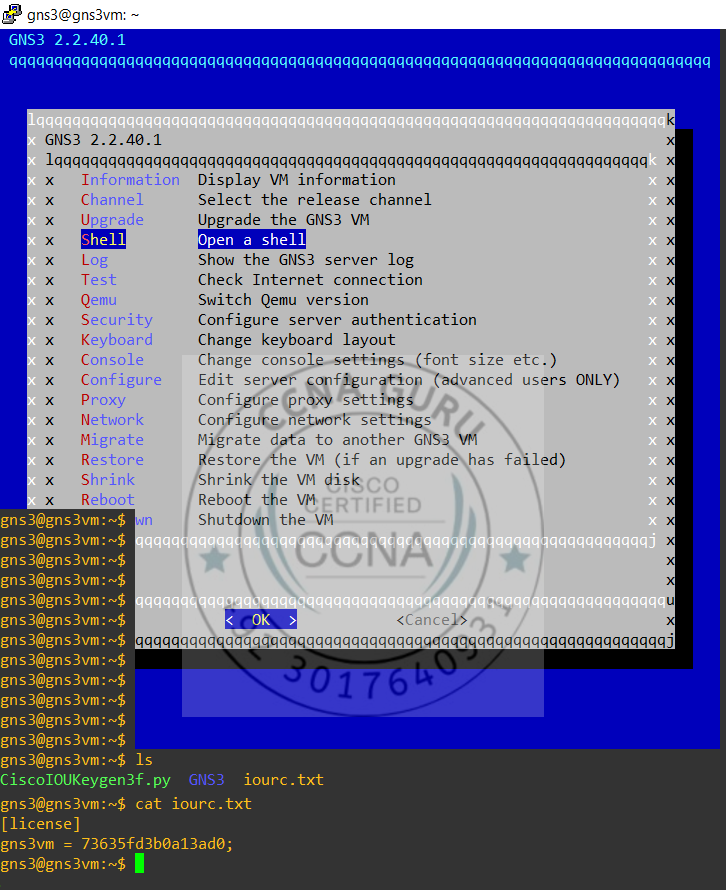
Step 5: Apply License in GNS3
Copy the license key and configure GNS3 preferences:
gns3vm = 73635fd3b0a13ad0;
GNS3 Menu Path: Edit → Preferences → IOS on UNIX → License
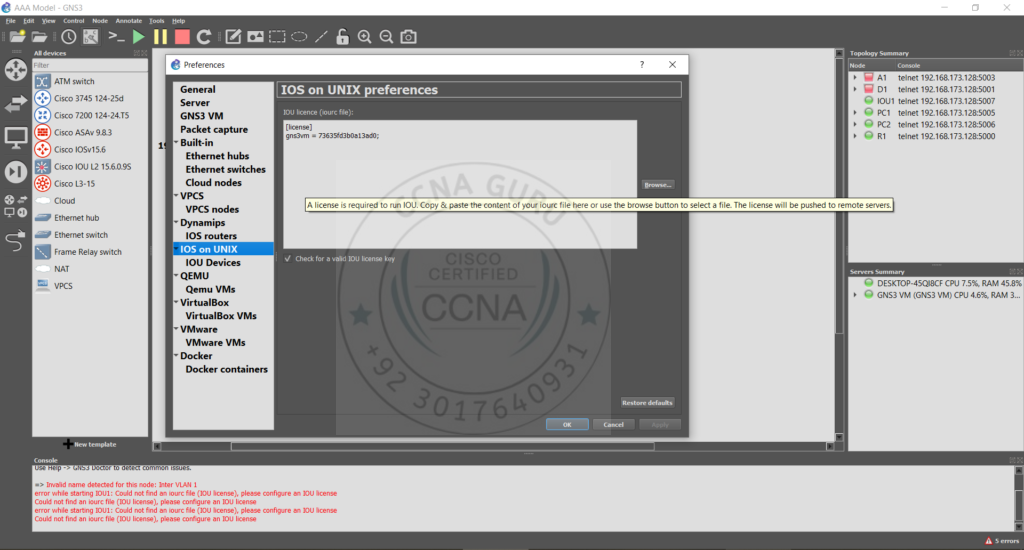
Troubleshooting Common IOU License Issues
| Issue | Symptoms | Solution |
|---|---|---|
| License Invalid Error | “LICENSE INVALID” message when starting IOU devices | Regenerate license file and ensure correct format in GNS3 preferences |
| wget Command Fails | Unable to download CiscoIOUKeygen3f.py script | Check internet connection on GNS3 VM and verify URL is accessible |
| Python3 Not Found | “python3: command not found” error | Install Python3 on GNS3 VM or use alternative Python command |
| Permission Denied | Script execution blocked due to permissions | Run with proper permissions or use chmod +x on the script |
Best Practices for GNS3 IOU Setup
License Backup
Save your iourc.txt file in cloud storage for future reinstalls
VM Performance
Allocate sufficient RAM (4GB minimum) for smooth network simulation
Regular Updates
Keep GNS3 and VMware Tools updated for best IOU performance
Testing Strategy
Start with simple topologies to verify license activation
Ready to Master Network Simulation with GNS3?
Join thousands of network professionals who use GNS3 for certification prep and real-world testing.
🎯 Professional Benefits:
• Build complex network topologies without hardware
• Practice CCNA/CCNP labs with real Cisco IOS
• Test configurations in safe virtual environment
• Accelerate your networking career
Complete your GNS3 setup and start building advanced network simulations today!
Conclusion: Master Network Simulation with Proper IOU License
Successfully activating your Cisco IOU license in GNS3 opens the door to unlimited network simulation possibilities. With your properly licensed environment, you can create complex topologies, practice real-world scenarios, and accelerate your networking certification journey. Remember that the foundation of any great network engineer includes not just theoretical knowledge, but hands-on practical experience – and GNS3 with properly activated IOU licenses provides exactly that. Whether you’re preparing for CCNA, CCNP, or working on enterprise network designs, this setup will serve as your virtual lab for years to come.
🔍 SEO Hash Tags for Better Search Visibility
#GNS3IOULicense
#CiscoIOUActivation
#GNS3VMSetup
#NetworkSimulation
#ActivateCiscoIOU
#IOULicenseGenerator
#GNS3Tutorial
#CCNALabs
#CiscoCertification
#VirtualNetworking
#GNS3LicenseFix
#NetworkVirtualization
🎯 Popular Search Terms
GNS3 IOU License Key
Cisco IOU License Generator
GNS3 VM Setup Tutorial
Fix IOU License Error
Network Simulation Software